You don't need two systems. When QR ordering and tabletop ordering are natively integrated with your POS, every scan-to-order flows directly into the same kitchen queue as a counter order — no separate tablet, no manual re-entry. The confusion comes from bolt-on QR apps that work alongside a POS rather than inside one. This guide explains the difference and what to look for before you invest.
The 'Do I Need Two Systems?' Confusion
Restaurant owners researching QR ordering and scan-to-order for the first time almost always hit the same question: 'Do I need a separate system on top of my POS, or is this built in?' It's the right question to ask, because the answer determines your total cost, your operational complexity, and whether your kitchen ever sees a unified order queue — or three separate ones.
In NZ, labour costs now account for 40% of hospitality revenue — the highest on record according to the Restaurant Association of New Zealand. Reducing the manual work around order-taking — while maintaining accuracy — is one of the most direct levers available to operators. QR and tabletop ordering is that lever. But only when it's integrated properly.
This guide covers how scan-to-order connects with a POS system in practice, what the setup looks like, and how to choose a combined platform that genuinely works as one.
What a POS System Covers vs What QR Ordering Adds
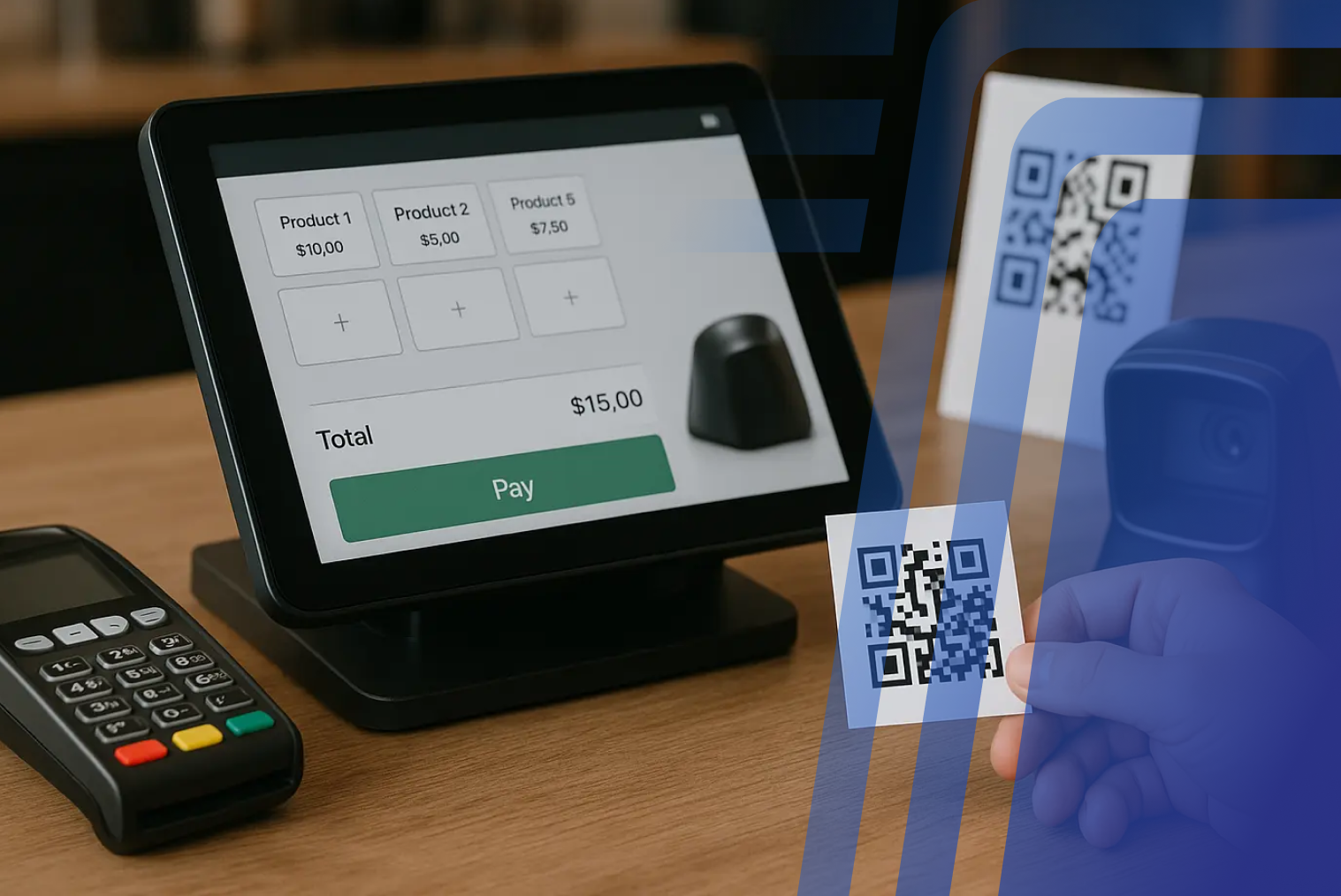
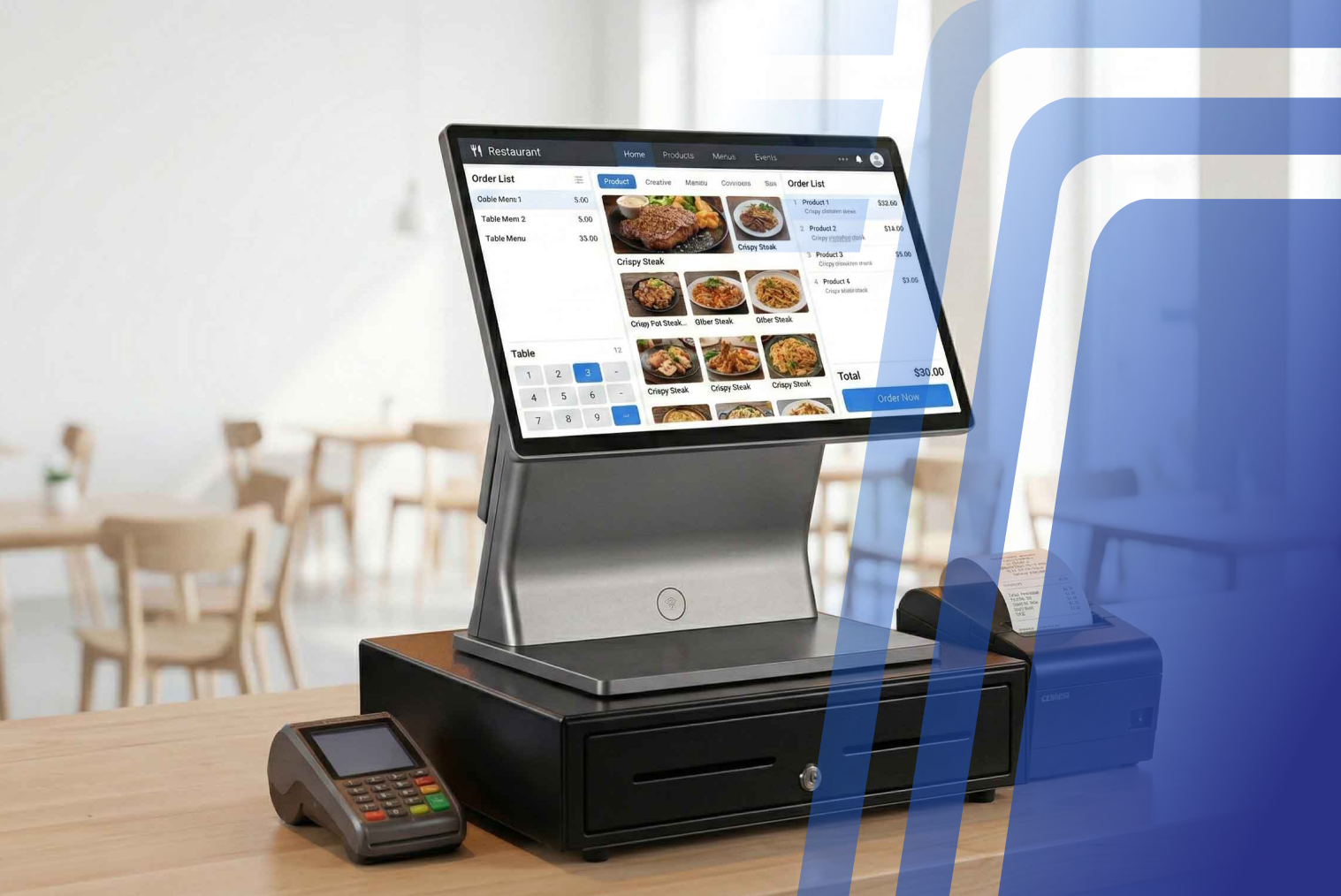
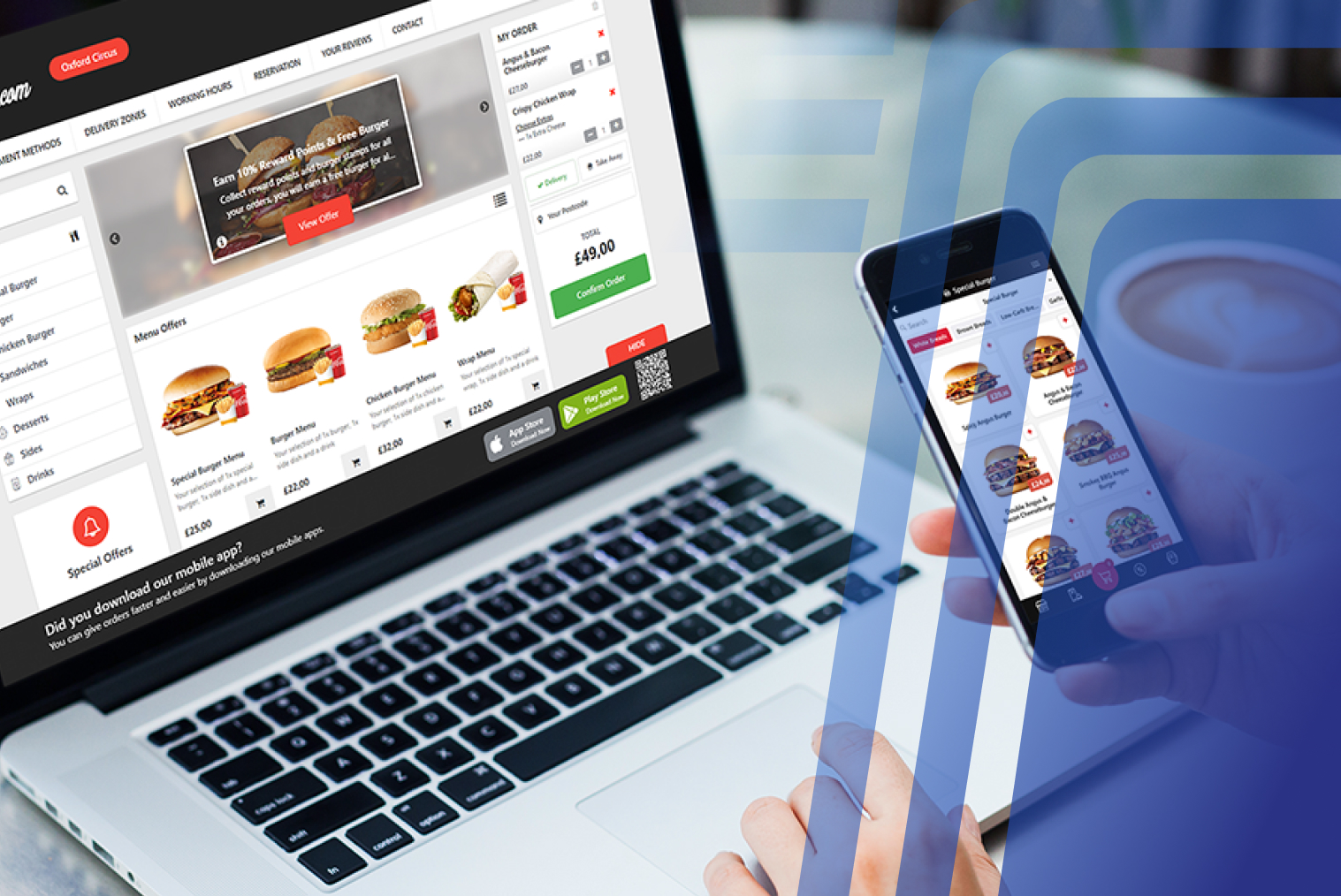
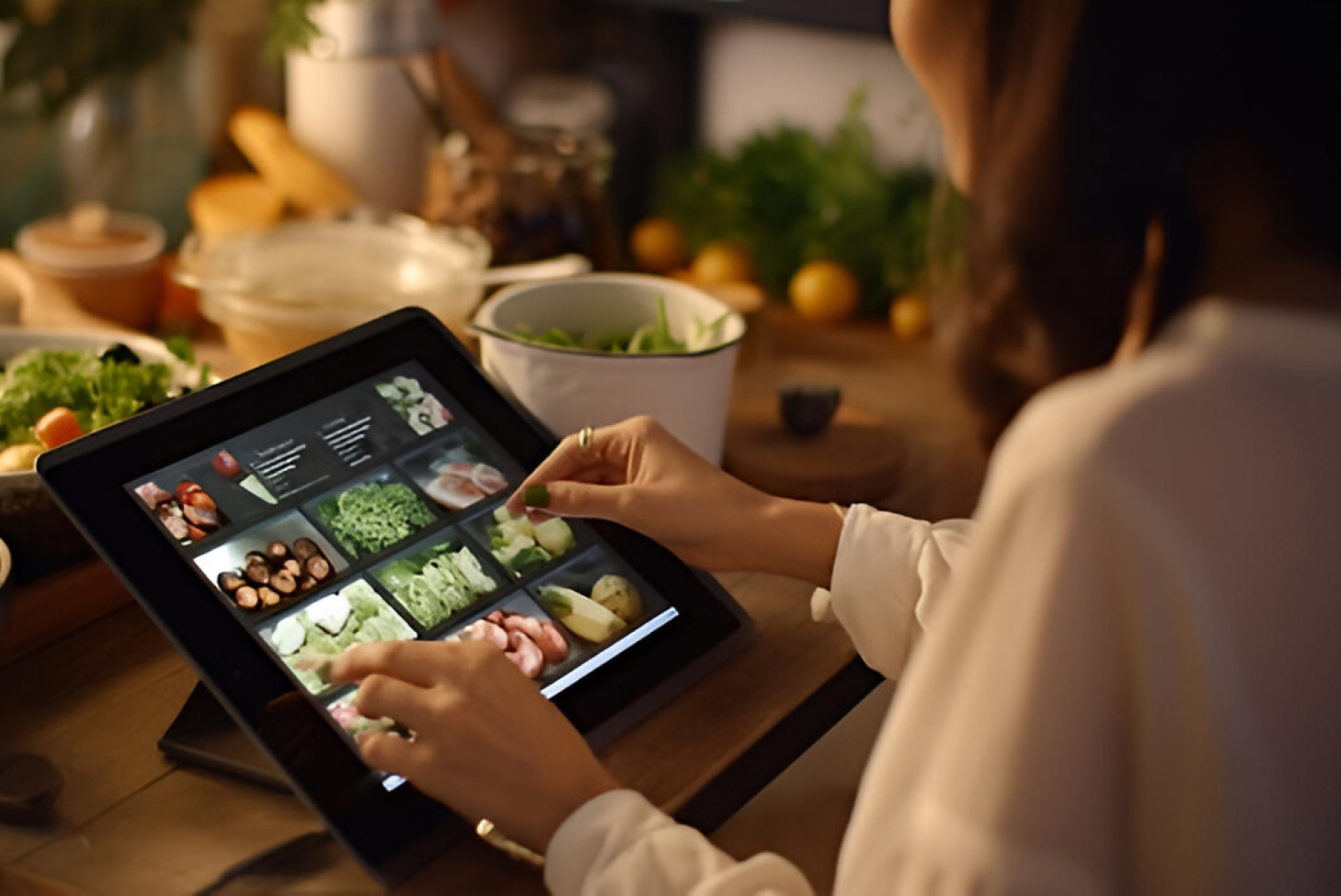
A POS system processes payments, manages the menu, records transactions, and reports on sales. What it doesn't do by default is let your customers order from their own device. QR and tabletop ordering add that capability — placing the ordering interface in the customer's hands, at the table, without requiring a staff member to take the order.
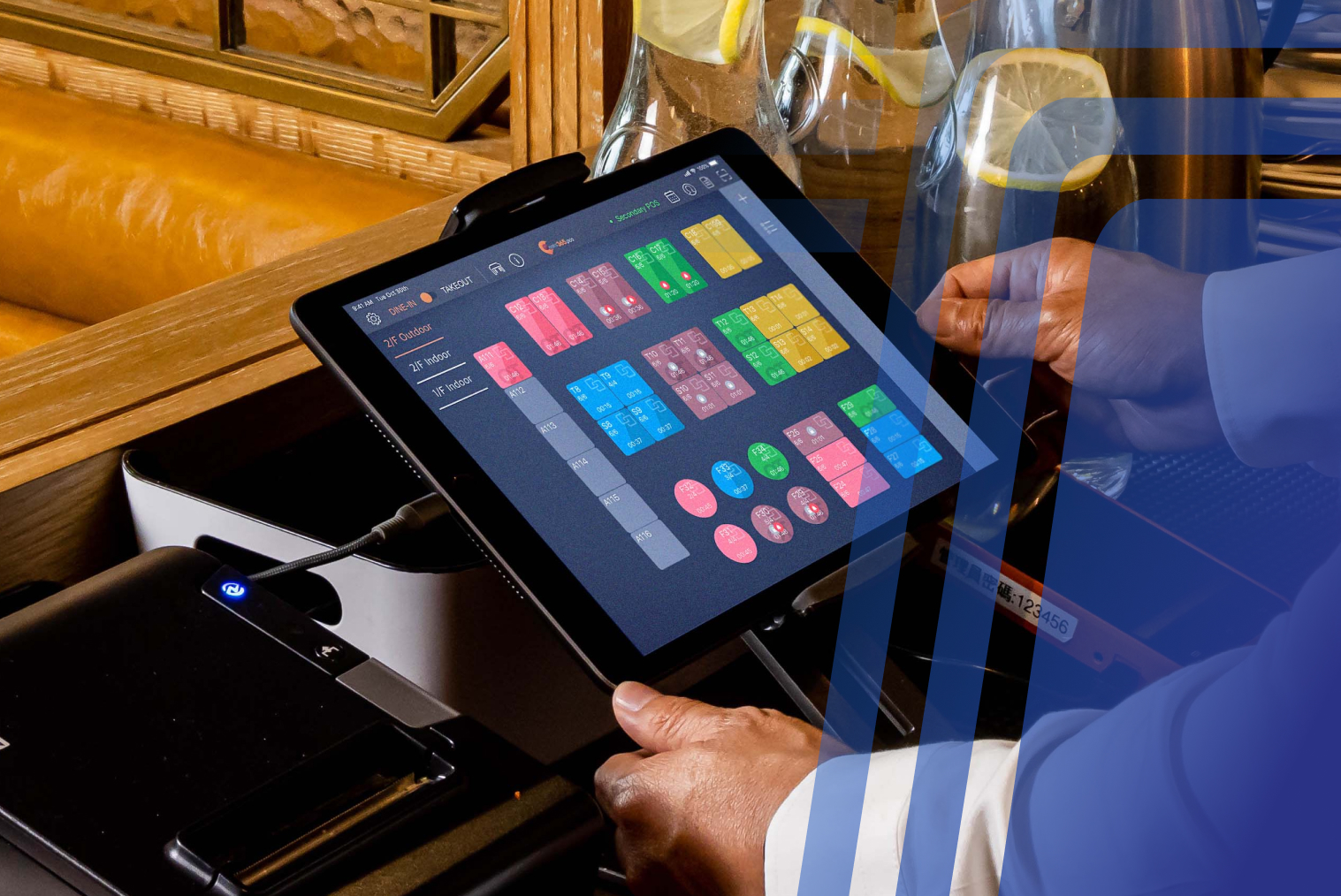
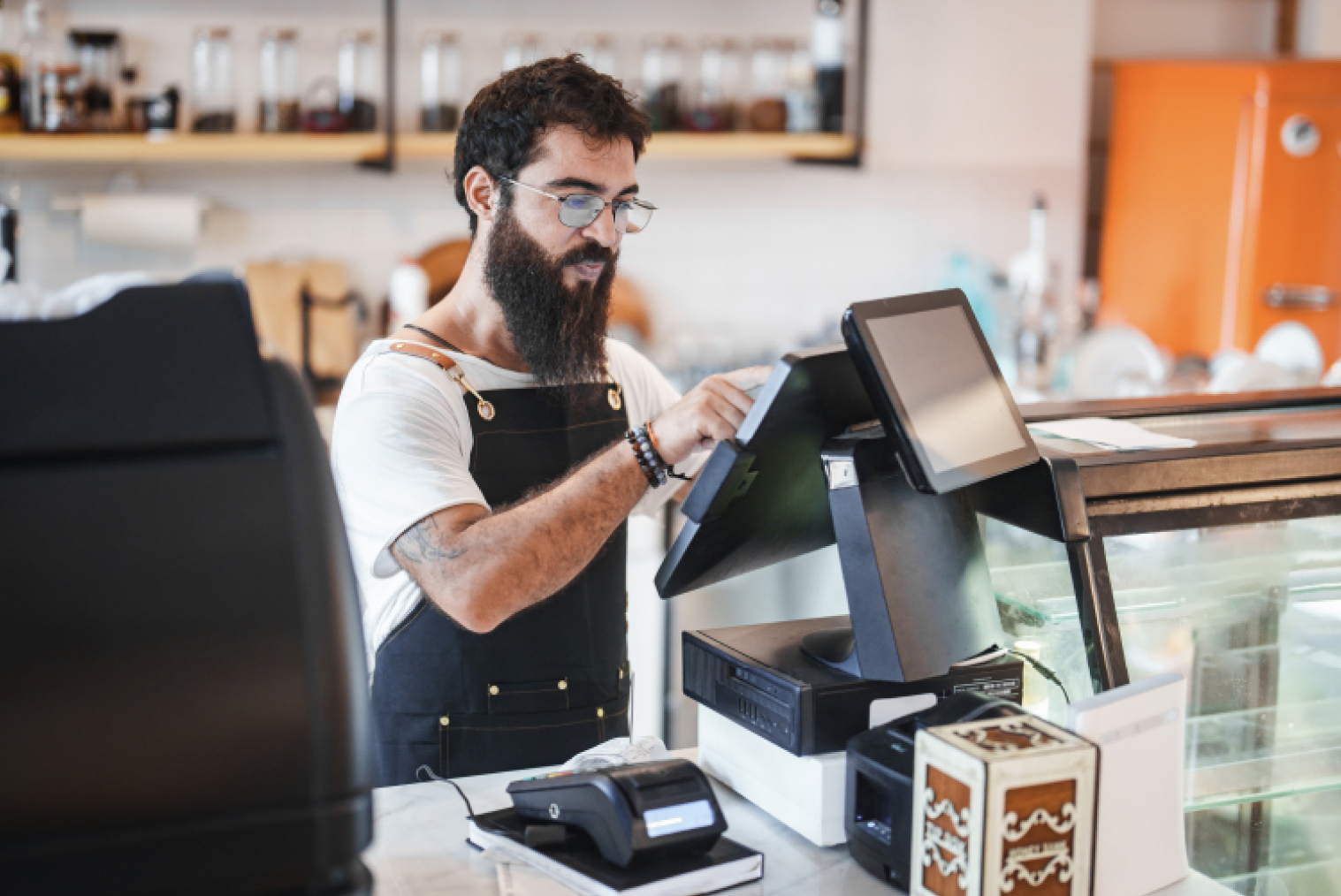
A POS without table ordering is a tool for staff. A POS with integrated QR ordering is a tool for both staff and customers — with every order, regardless of source, appearing in the same system.
The TABIN QR code menu ordering system, for example, sends every table order directly into the TABIN POS and KDS in real time — table number included. There's no separate screen for staff to monitor, no manual re-entry, and no separate order queue.
One Integrated Platform vs Bolting On a Separate QR App
The most important thing to understand about QR ordering is that 'integration' means different things in different systems. Here's what that actually looks like in practice:
| Criterion |
Native POS Integration |
Bolt-on QR App |
| Order destination |
Direct to POS + KDS queue |
Separate tablet or printer — staff monitor separately |
| Menu sync |
Automatic — update once in POS |
Manual update in both systems — easy to miss |
| Payment processing |
One payment flow — unified |
Separate payment gateway — separate reconciliation |
| Table identification |
Unique per-table, auto-routed |
May require manual table assignment |
| Staff workflow |
Single dashboard |
Two screens, two workflows |
| EFTPOS integration |
Through existing POS connection |
Separate or may not support NZ EFTPOS NZ |
| Reporting |
All orders in one report |
QR orders in one system, POS in another |
| Monthly cost |
Included in POS subscription |
Additional subscription on top of POS fee |
A POS and online ordering integration that's genuinely native means the customer's scan-to-order flows through the same infrastructure as your counter and kiosk orders. A bolt-on app is a workaround — it may look like integration, but operationally it's two systems running side by side.
How Scan-to-Order Works With Your POS in Practice
When QR ordering is properly integrated with a POS system, the entire flow from customer scan to kitchen ticket happens without any staff involvement in the ordering step. The customer scans, browses, customises, pays, and the order appears in the POS and on the KDS — tagged with the table number, all modifications included, and routed to the correct station.
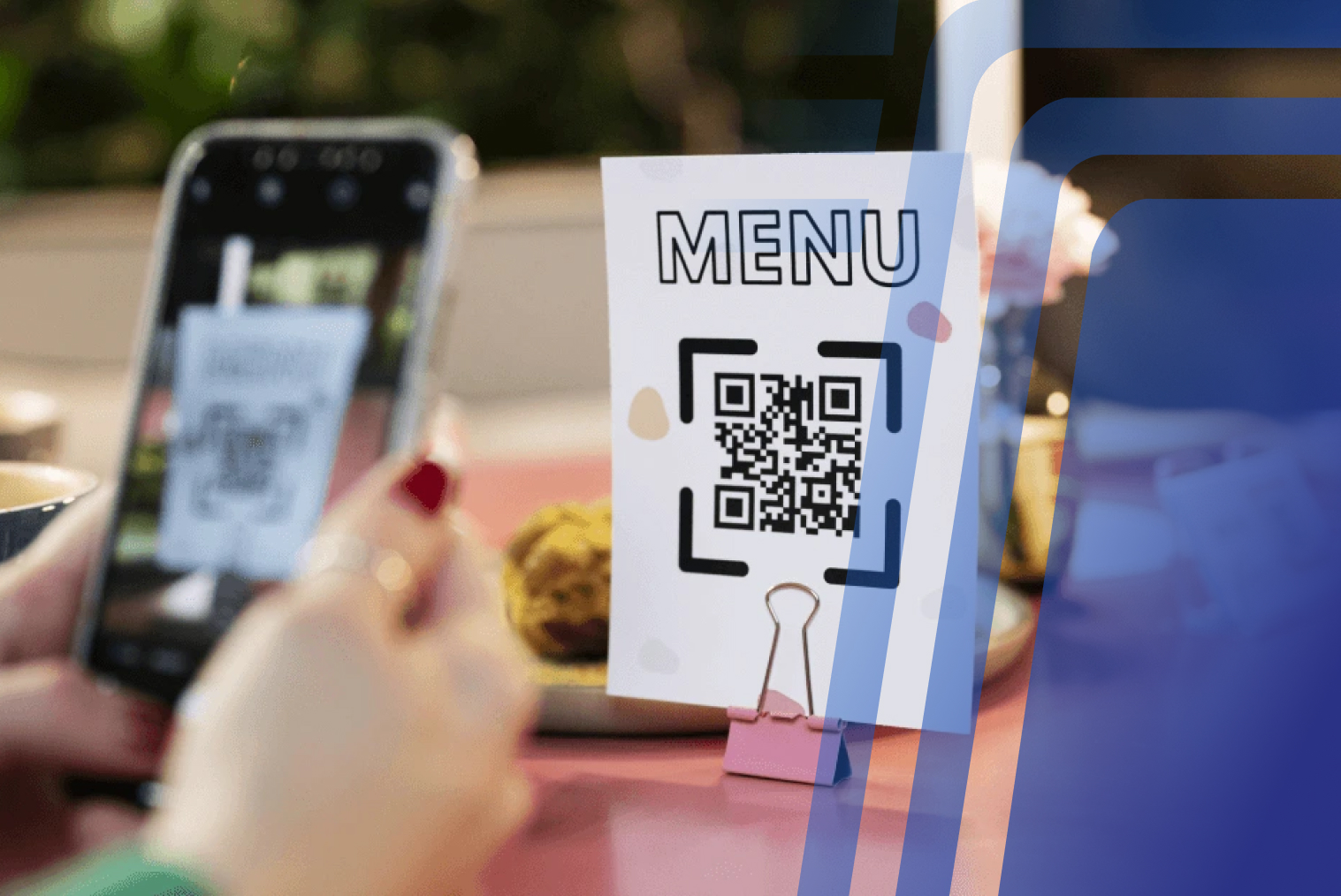
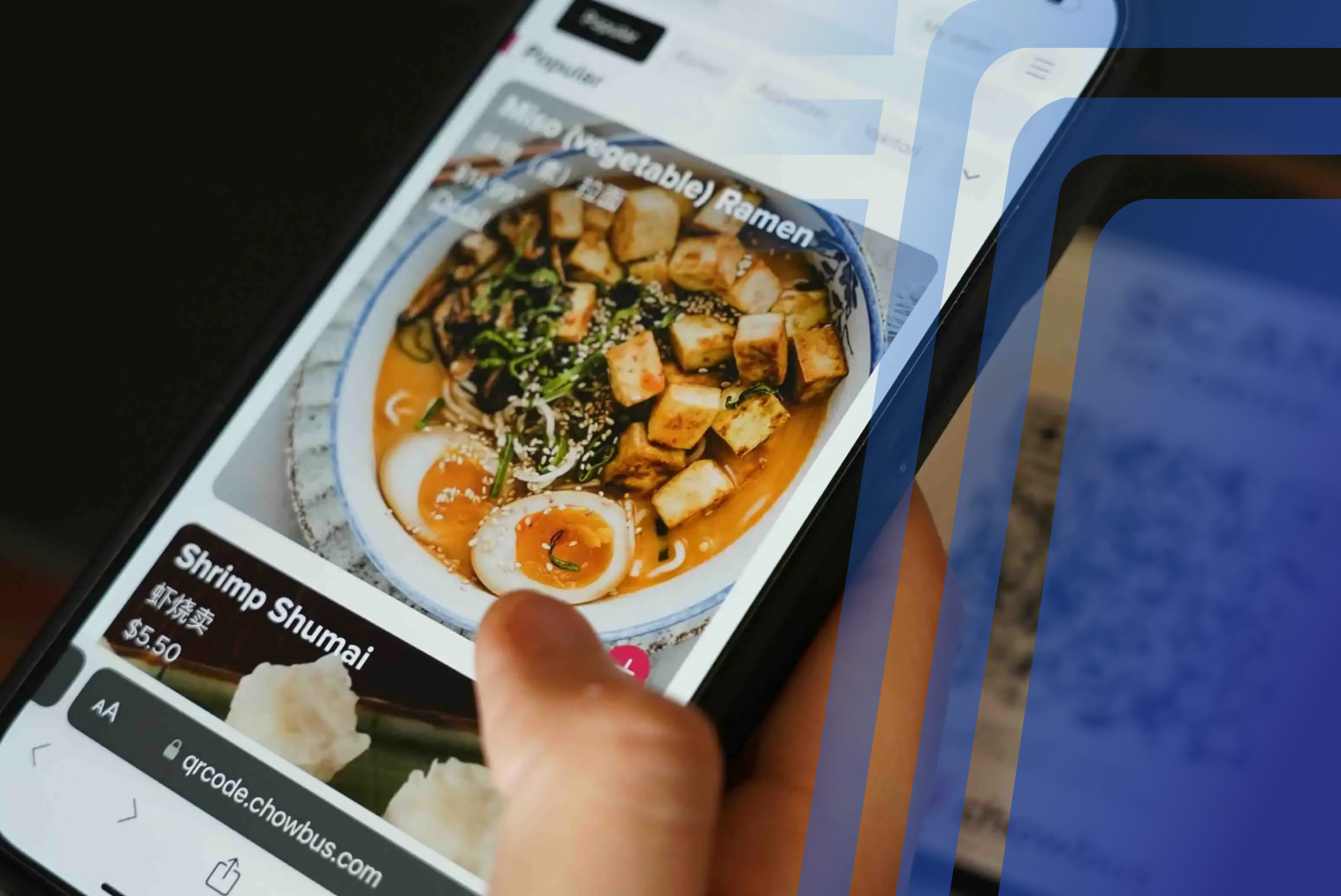
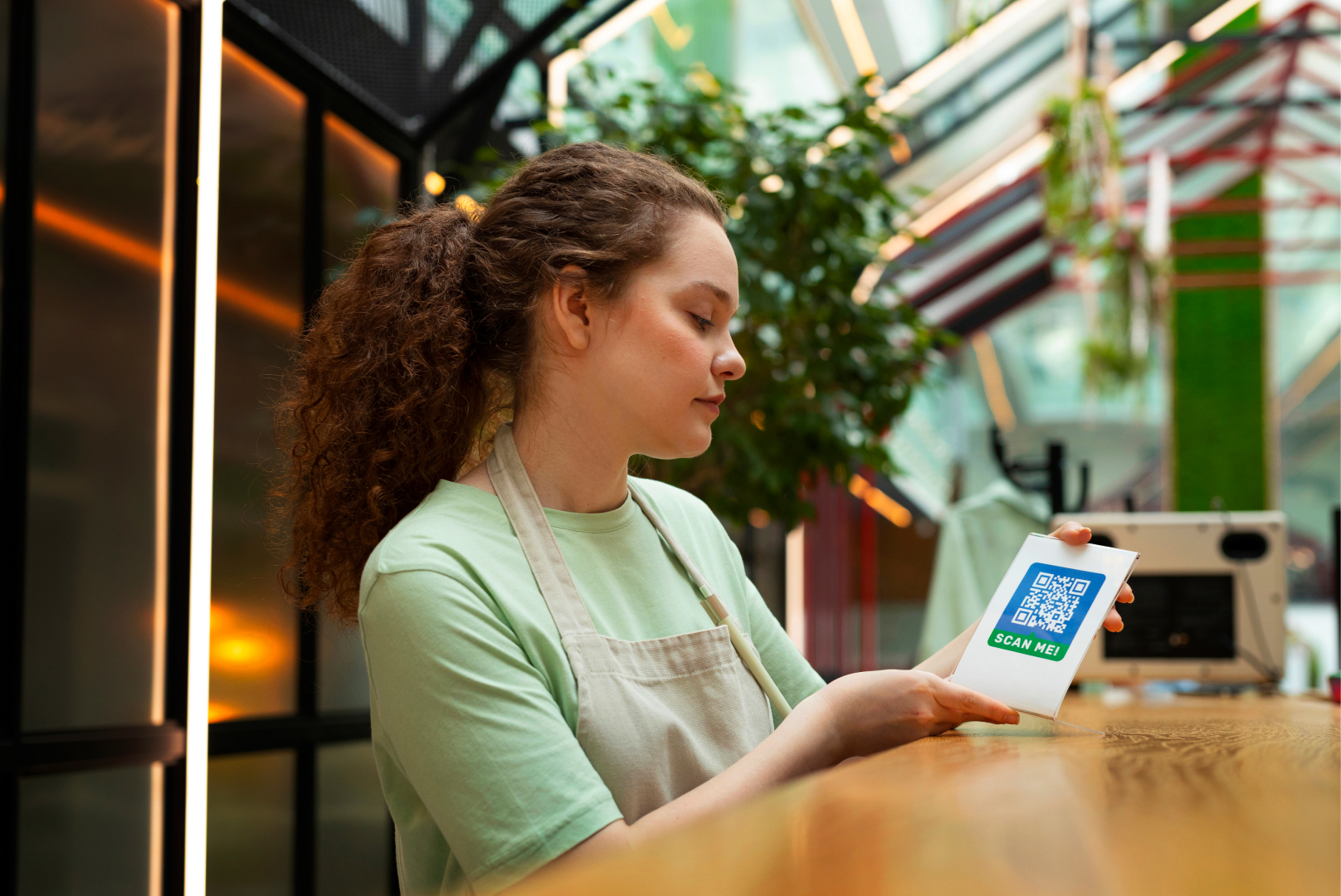
- Customer scans the QR code at their table using their phone camera. No app download required — the menu opens in the browser instantly.
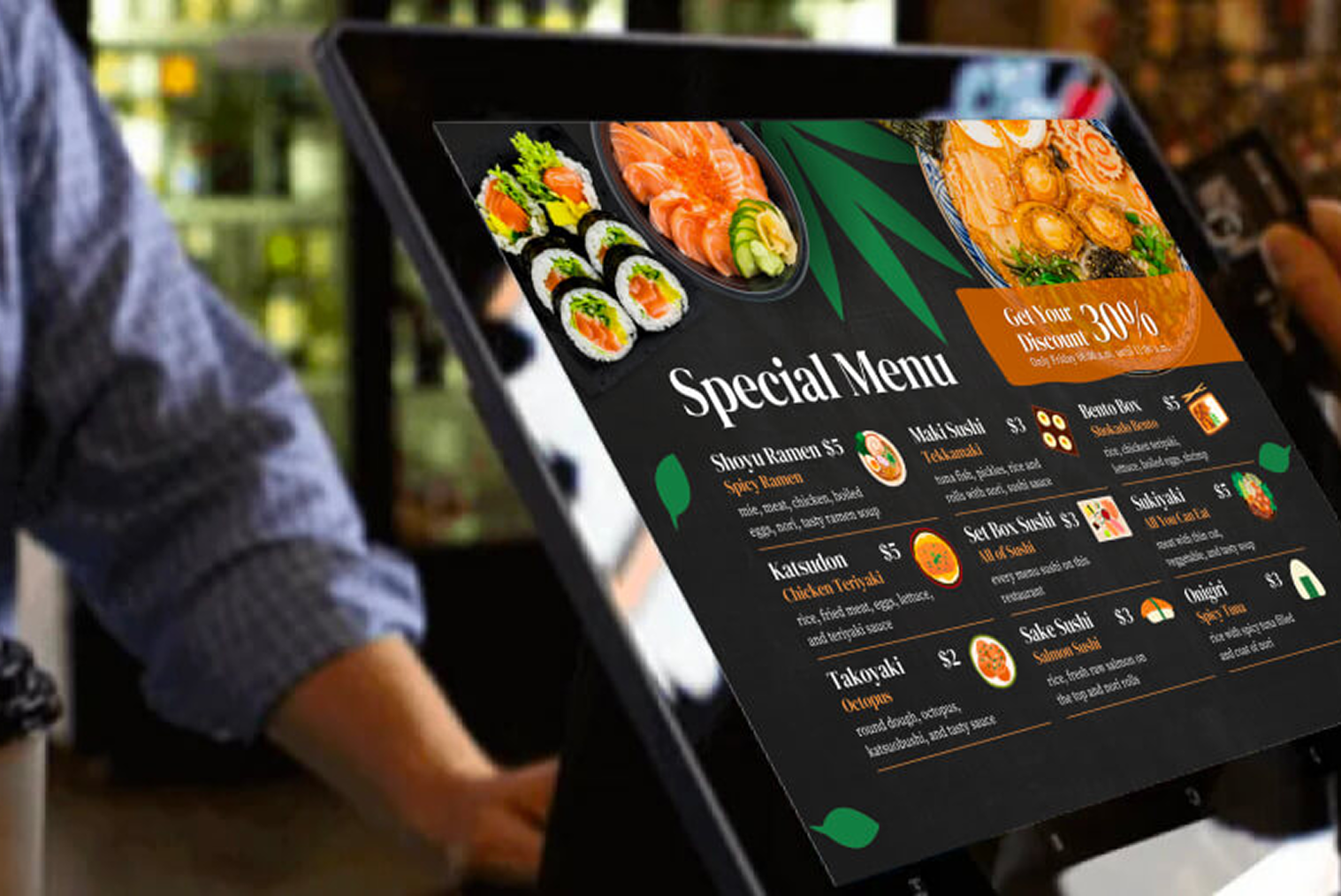
- Digital menu loads with photos, dietary tags, and full modifier options. The menu reflects current availability — sold-out items are removed automatically when the POS is updated.
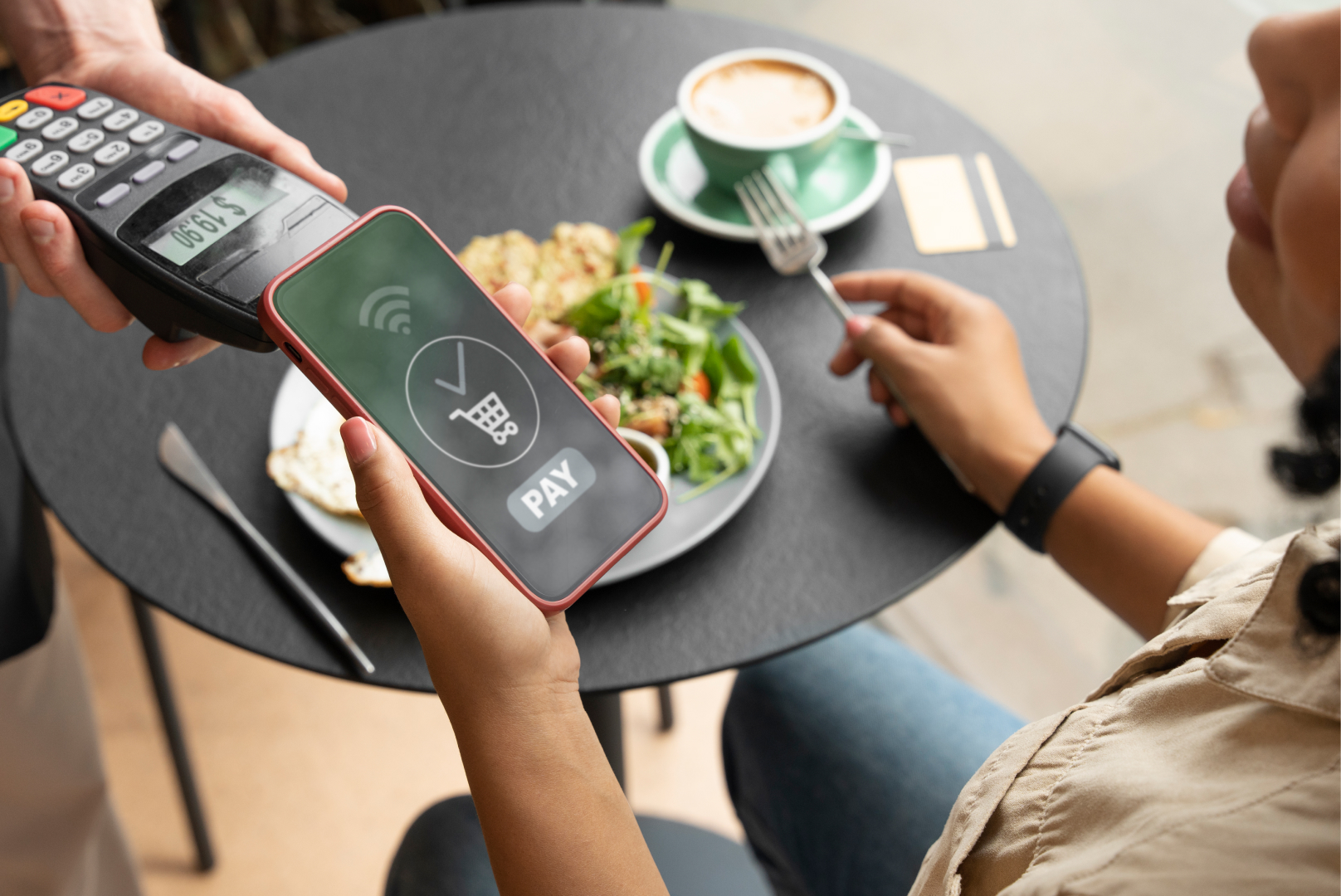
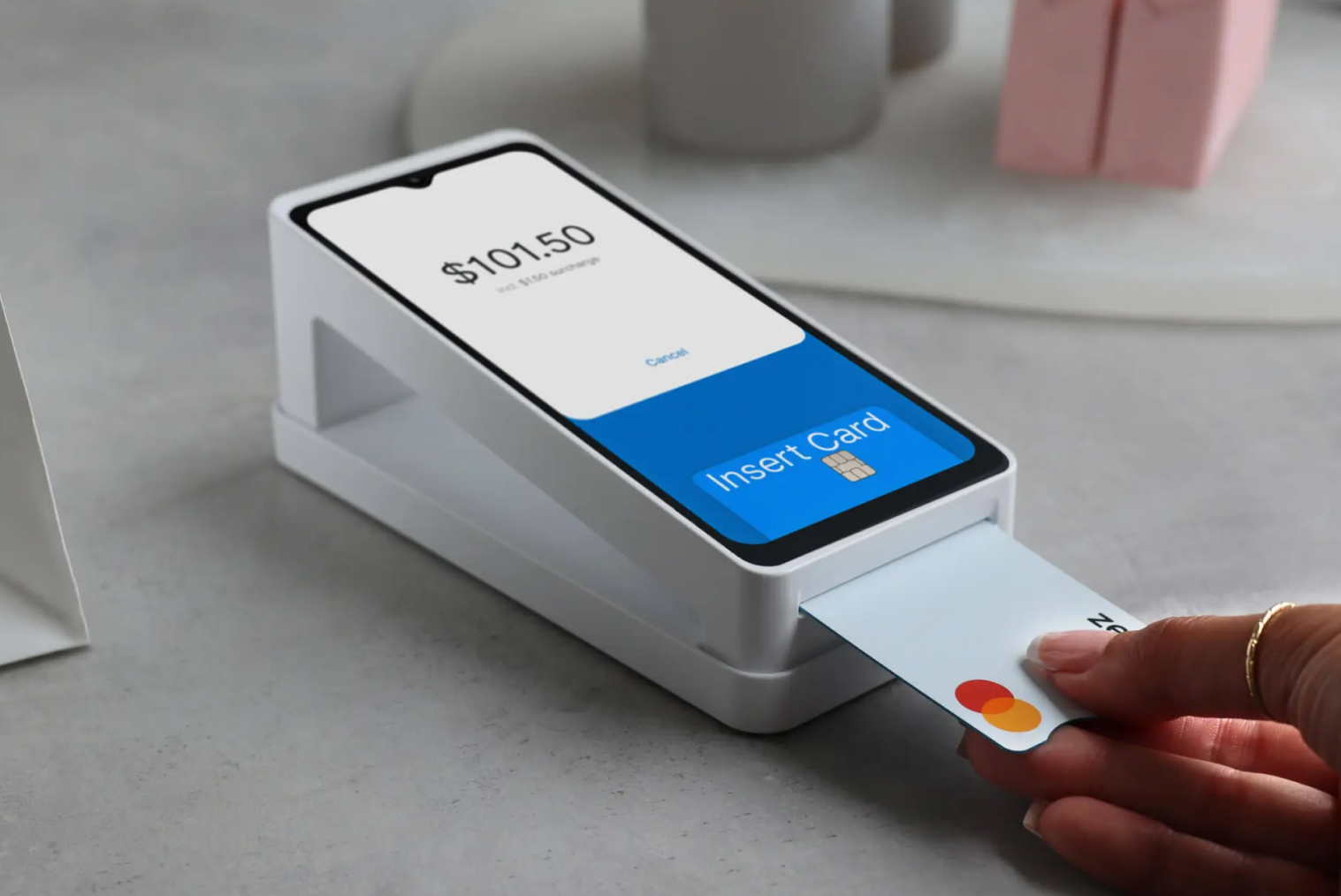
- Customer builds and pays for their order via Apple Pay, Google Pay, or card through Windcave or Stripe. Split payment between diners at the same table is handled through the same interface.
- The order is transmitted to the POS and KDS instantly — table number, items, modifications, and any special instructions. Kitchen staff see it in the same queue as counter orders, with no re-entry required.
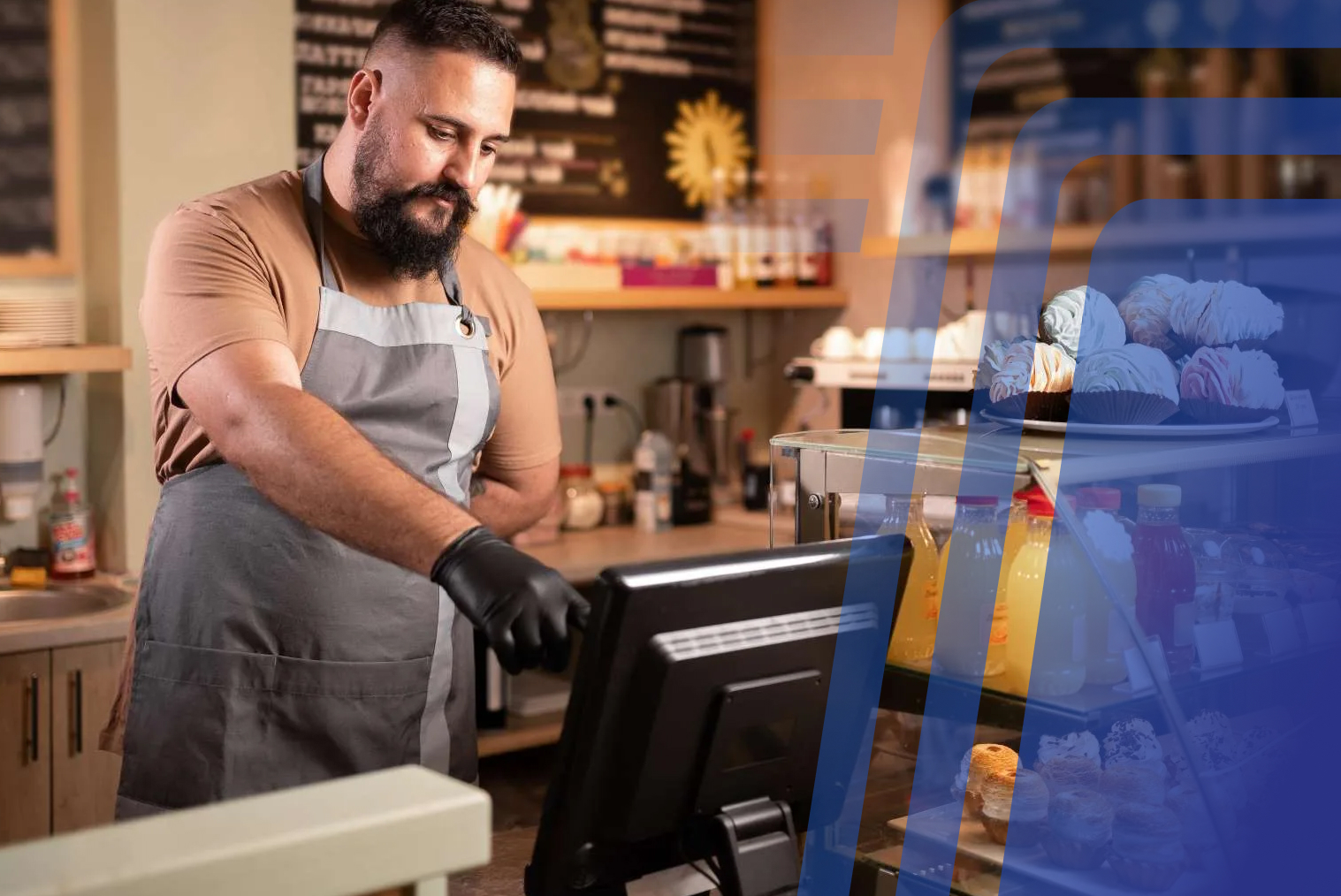
- Staff deliver food without having been involved in the ordering step. Their time is freed for preparation, room management, and customer experience.
According to TABIN's own QR ordering platform data, every order from scan to kitchen confirmation takes under two minutes — and customers using QR ordering average 15–25% higher spend than those ordering through counter staff.
Tabletop Ordering vs QR Menu Ordering vs Kiosk — Which Fits Your Venue
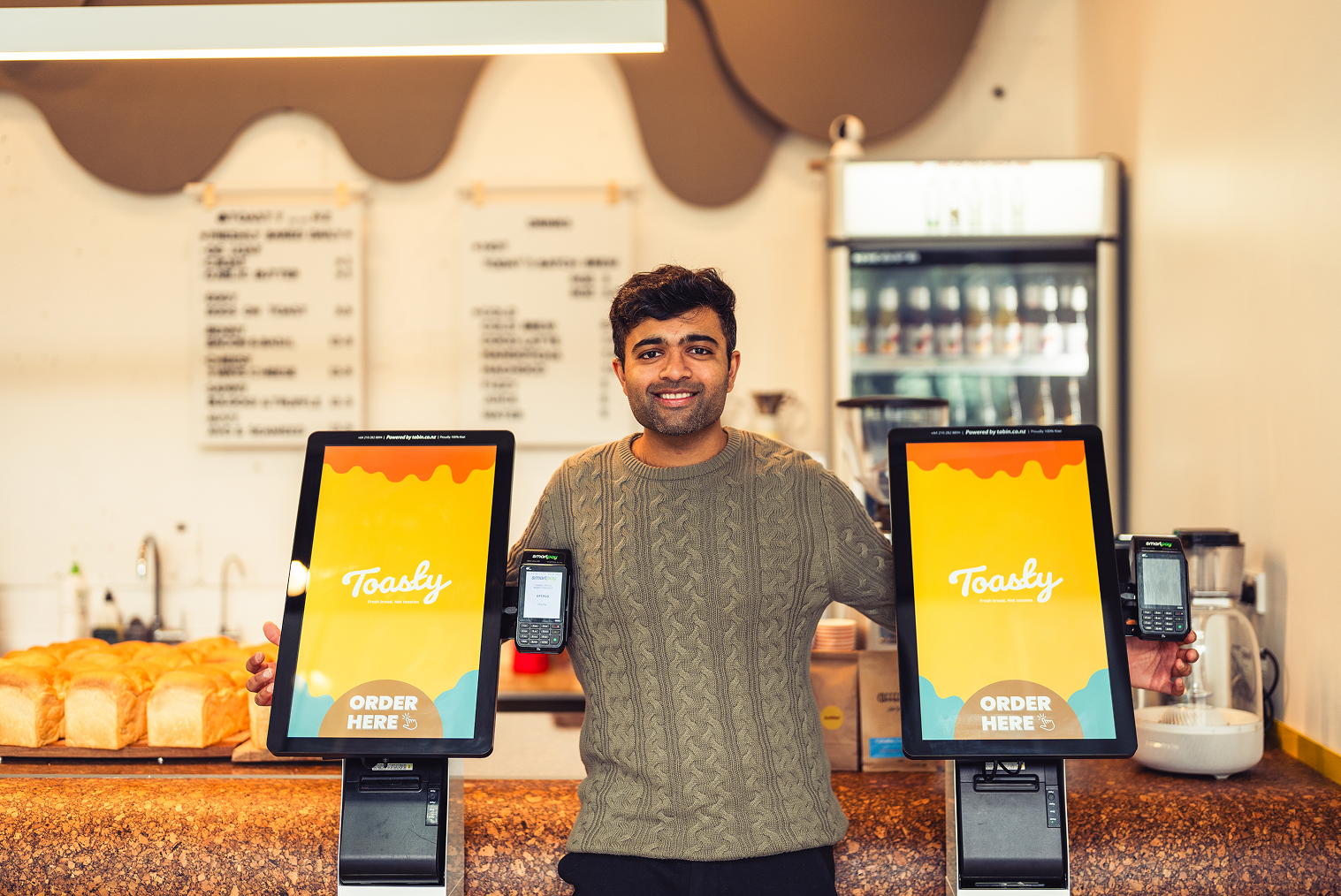
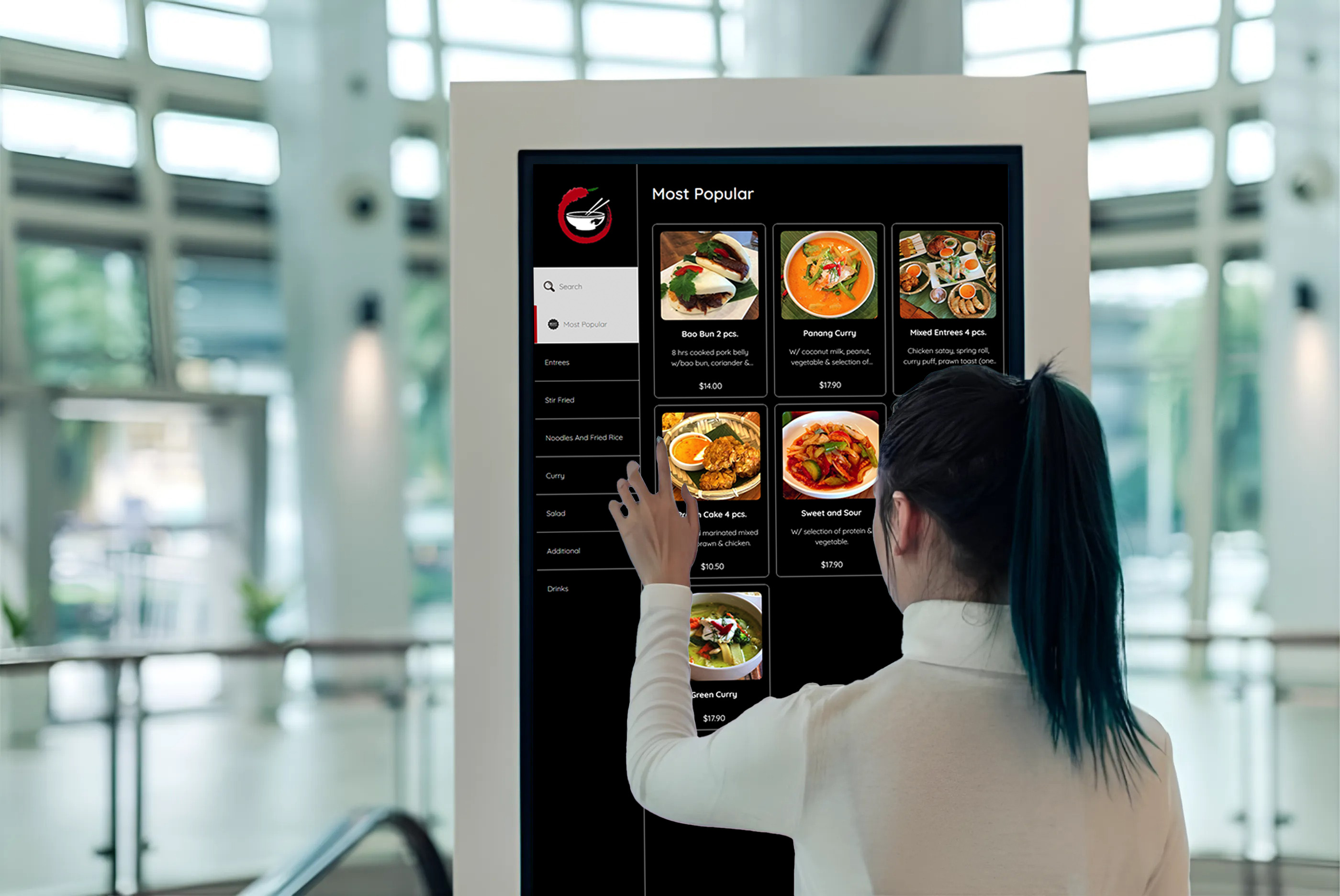
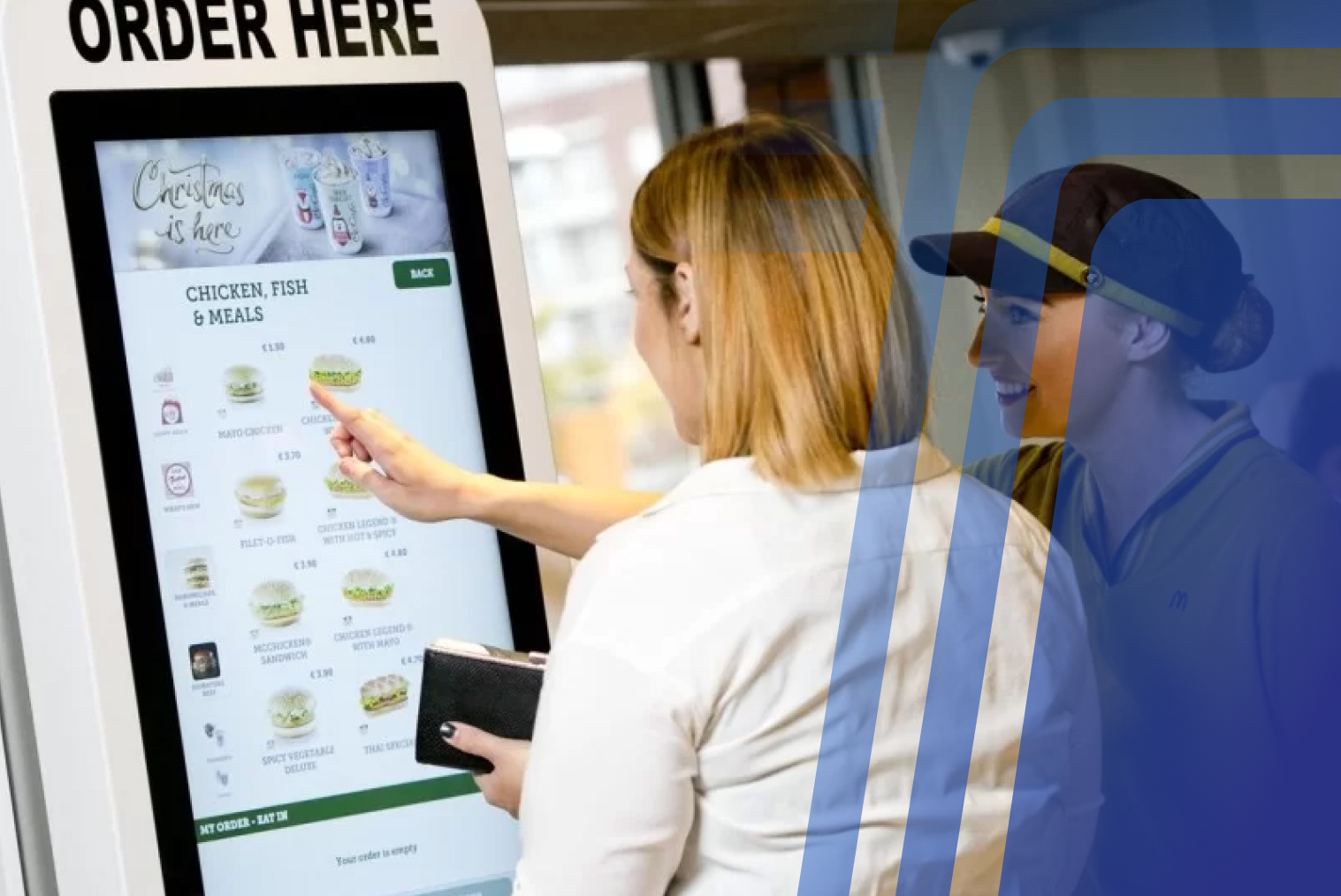
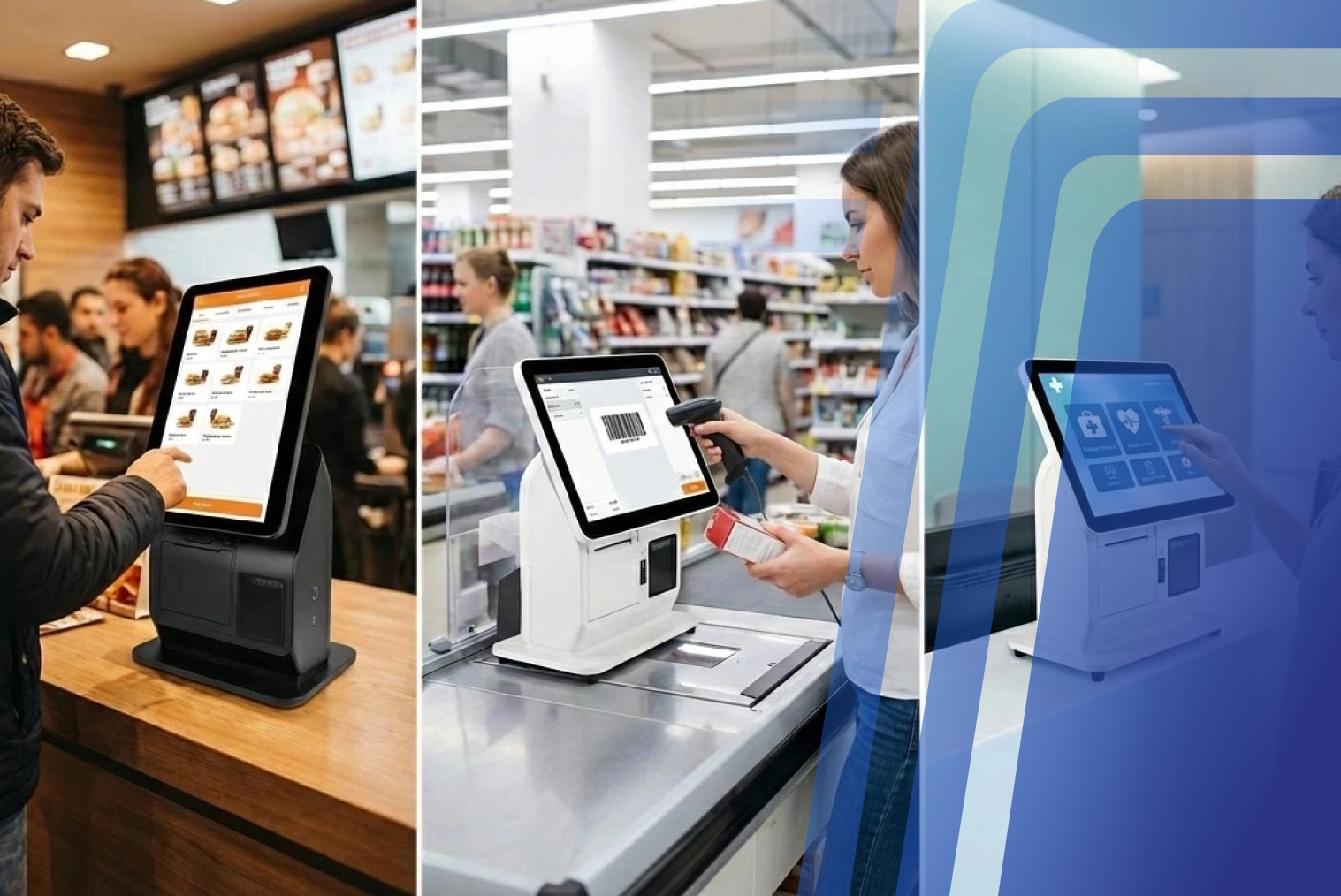
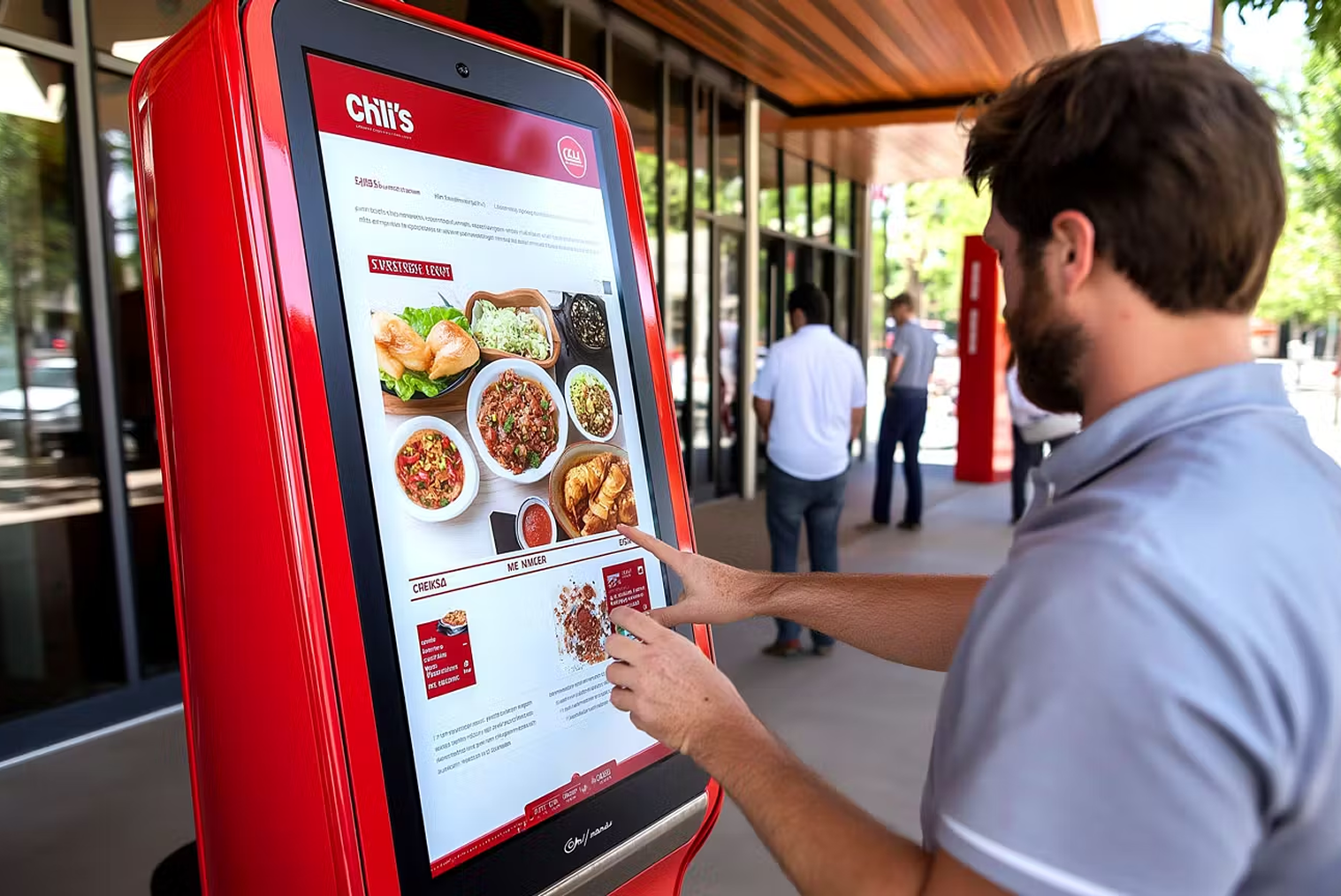
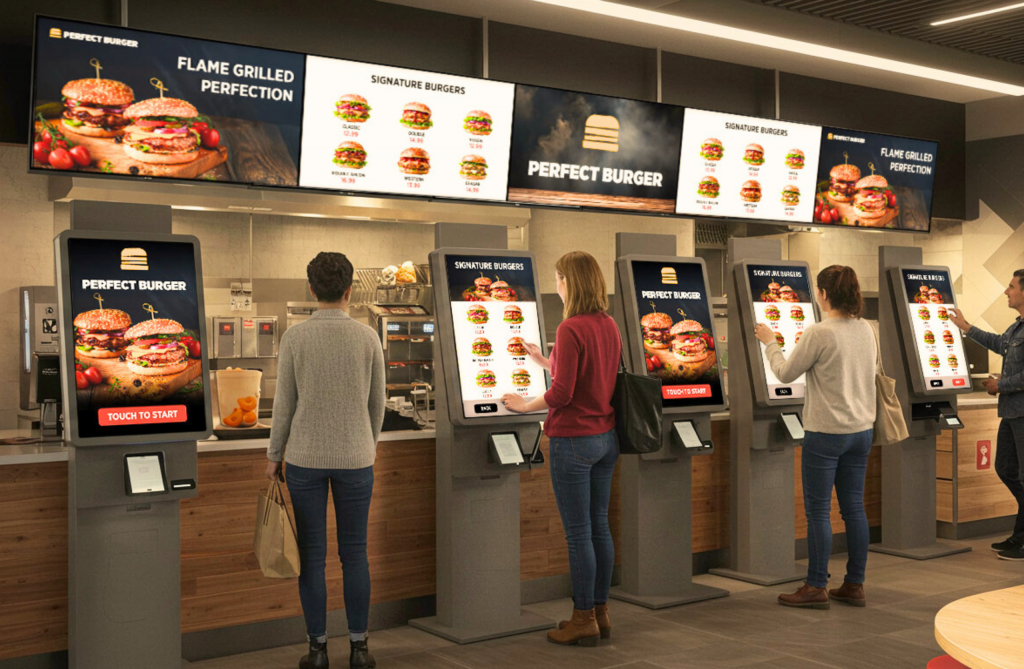
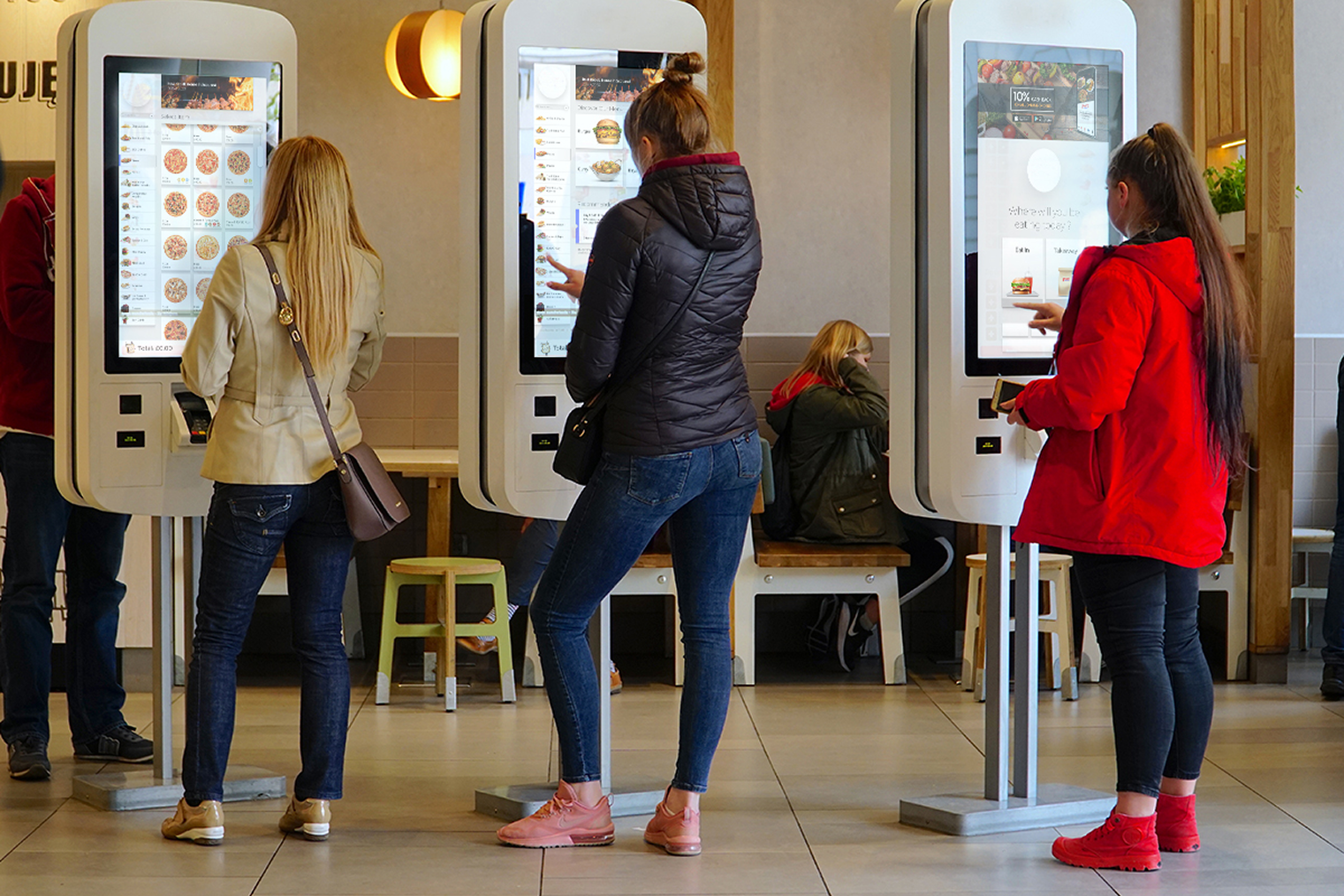
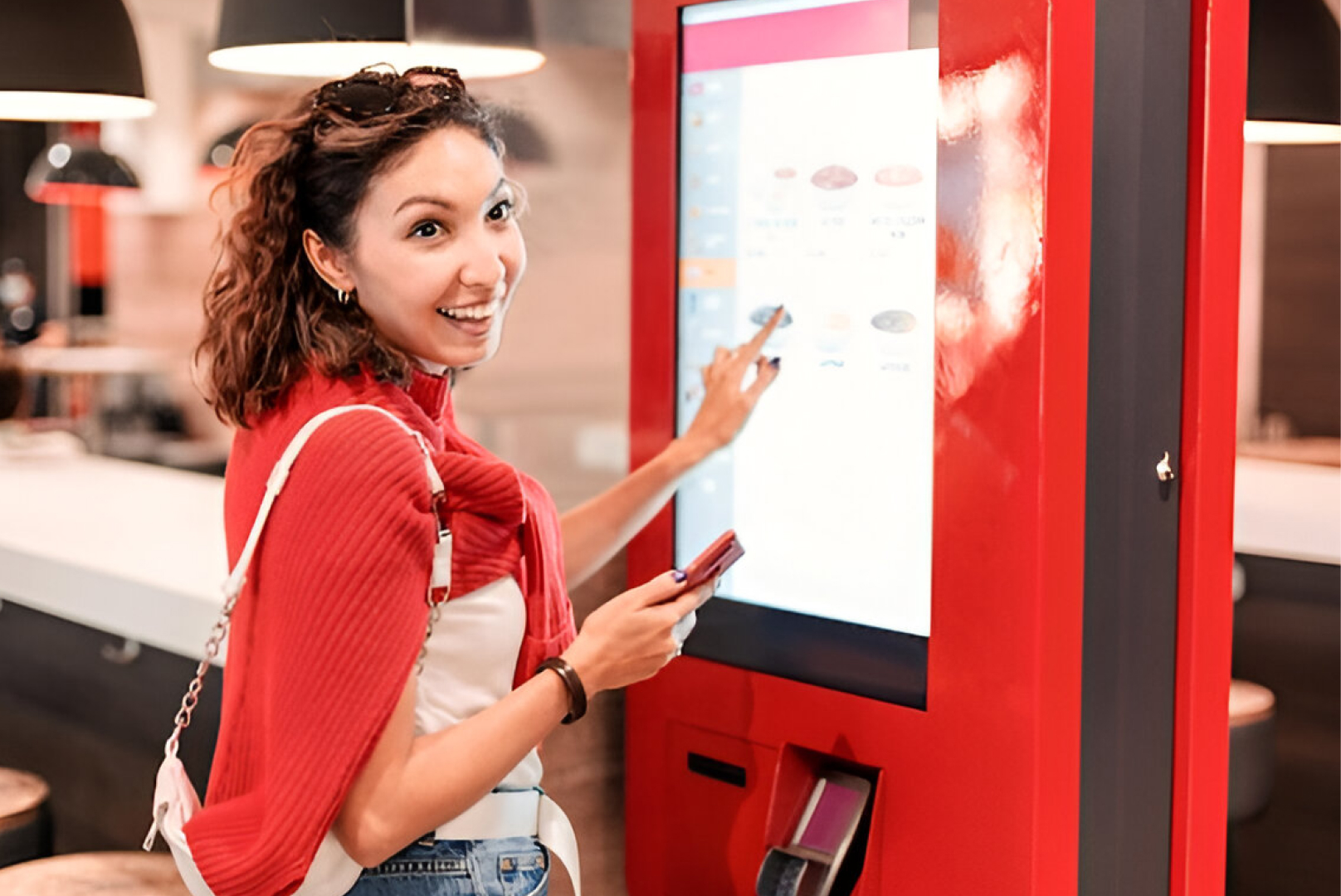
QR ordering (scan with phone), tabletop tablet ordering (device at the table), and kiosk ordering (device near the counter) all achieve the same outcome — customer-directed ordering — but suit different venue types and customer demographics.
| Format |
How It Works |
Best Venue Type |
Key Advantage |
| QR code ordering |
Customer scans code with phone; browser-based menu |
Cafés, casual dining, bars |
No hardware at table — lowest setup cost |
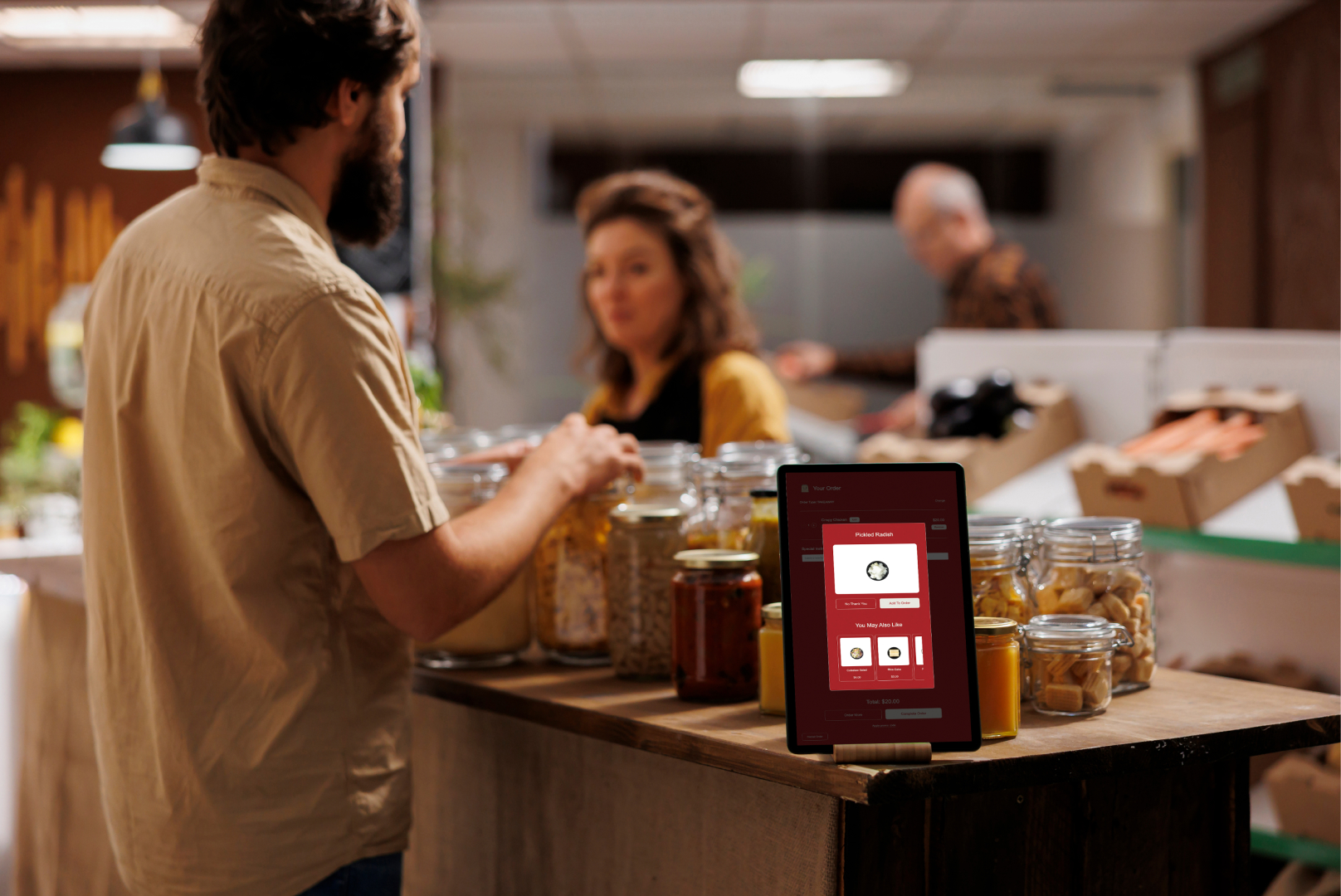
| Tabletop tablet |
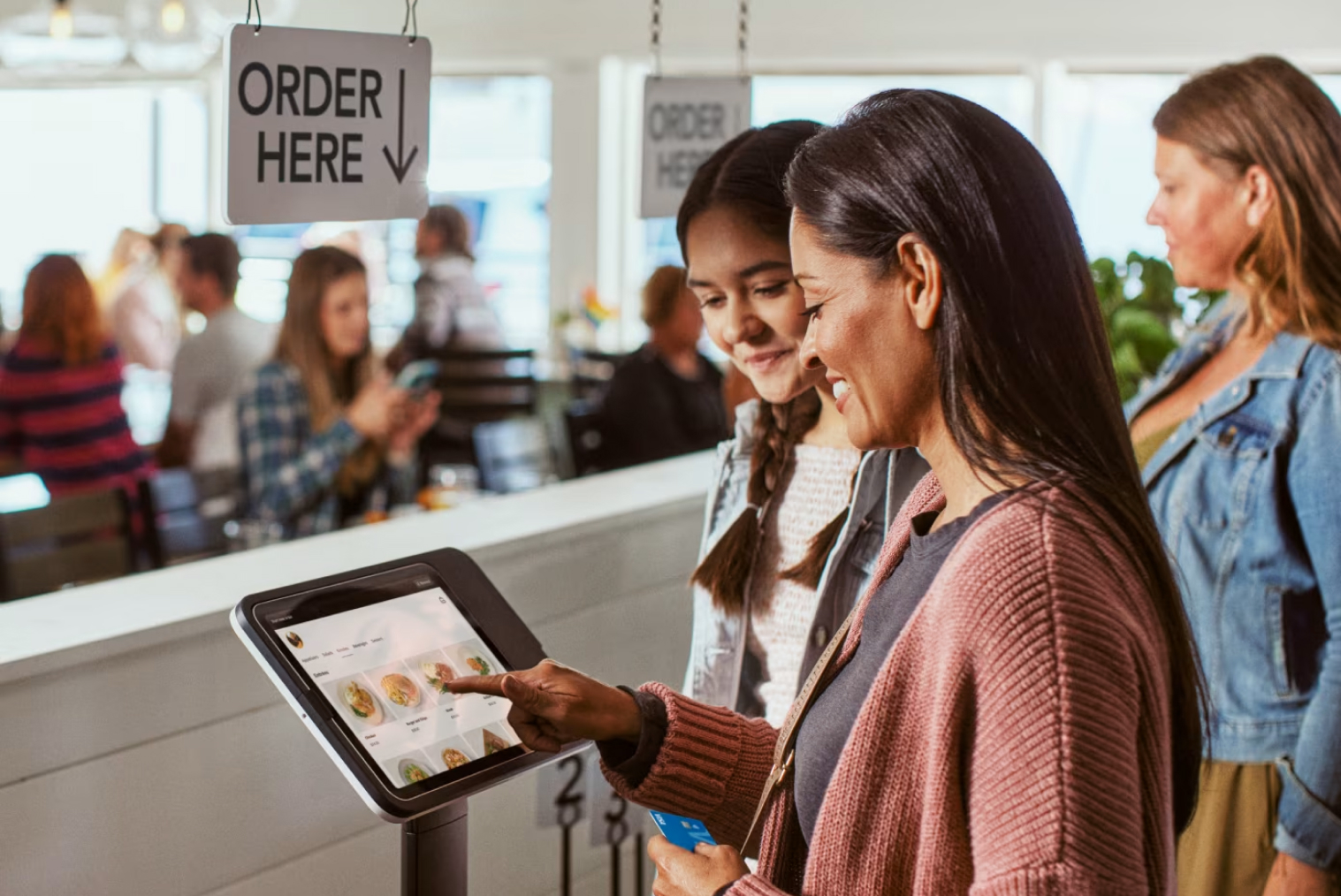
Dedicated tablet mounted at each table |
Family dining, food courts, pubs |
Accessible to all customers regardless of phone |
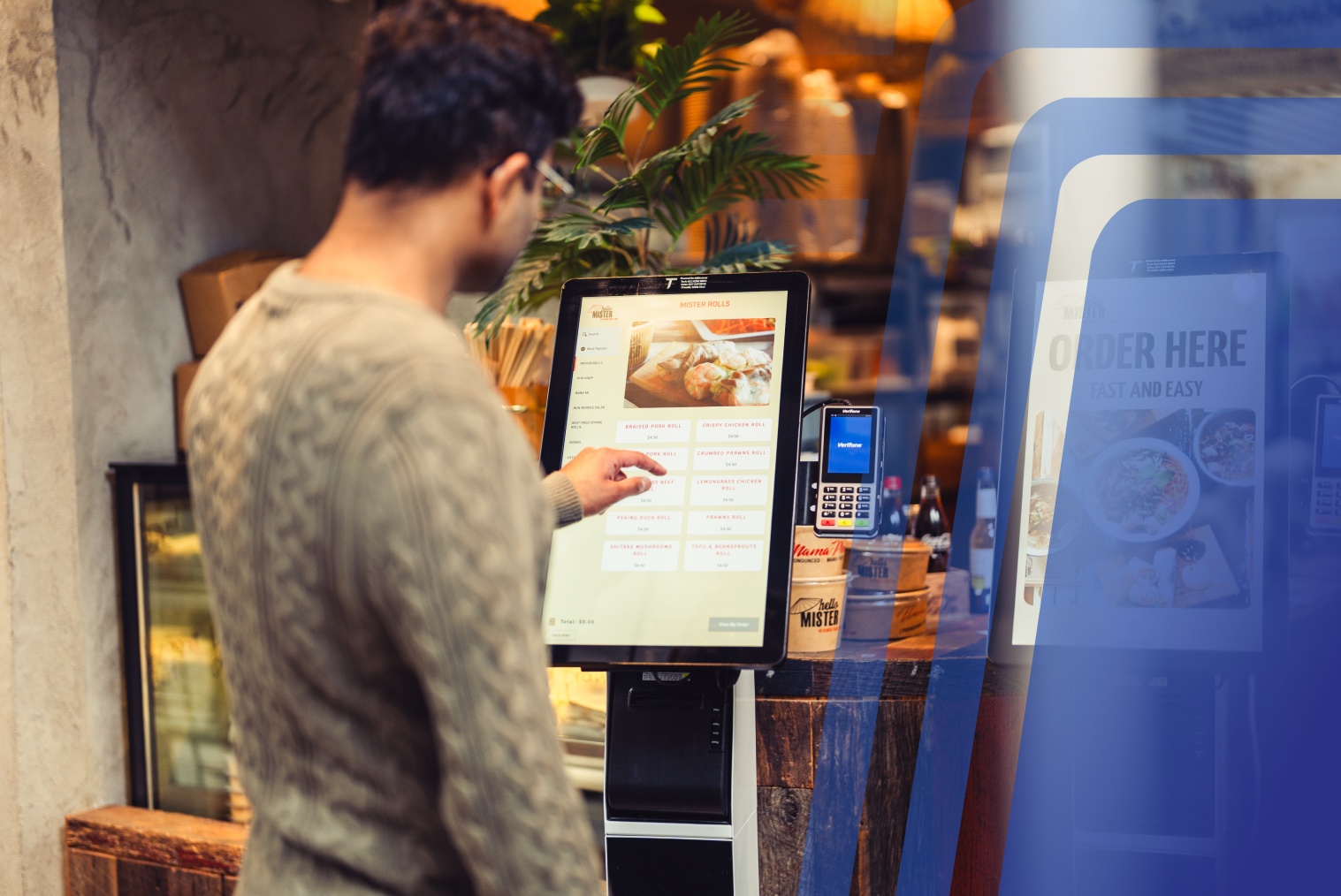
| Self-ordering kiosk |
Floor-standing or counter unit near ordering area |
QSR, fast food, fast casual |
High-visibility; handles takeaway and dine-in |
In NZ, QR ordering is the fastest-growing format — nearly half of diners aged 18–35 hold neutral or positive views on QR code ordering, according to 2025 dining trends research. The optimal approach for most NZ dine-in venues is QR as the primary channel, with counter or kiosk as a fallback for customers who prefer not to use their phone.
Setup & Hardware Requirements for a Combined POS + QR Ordering Rollout
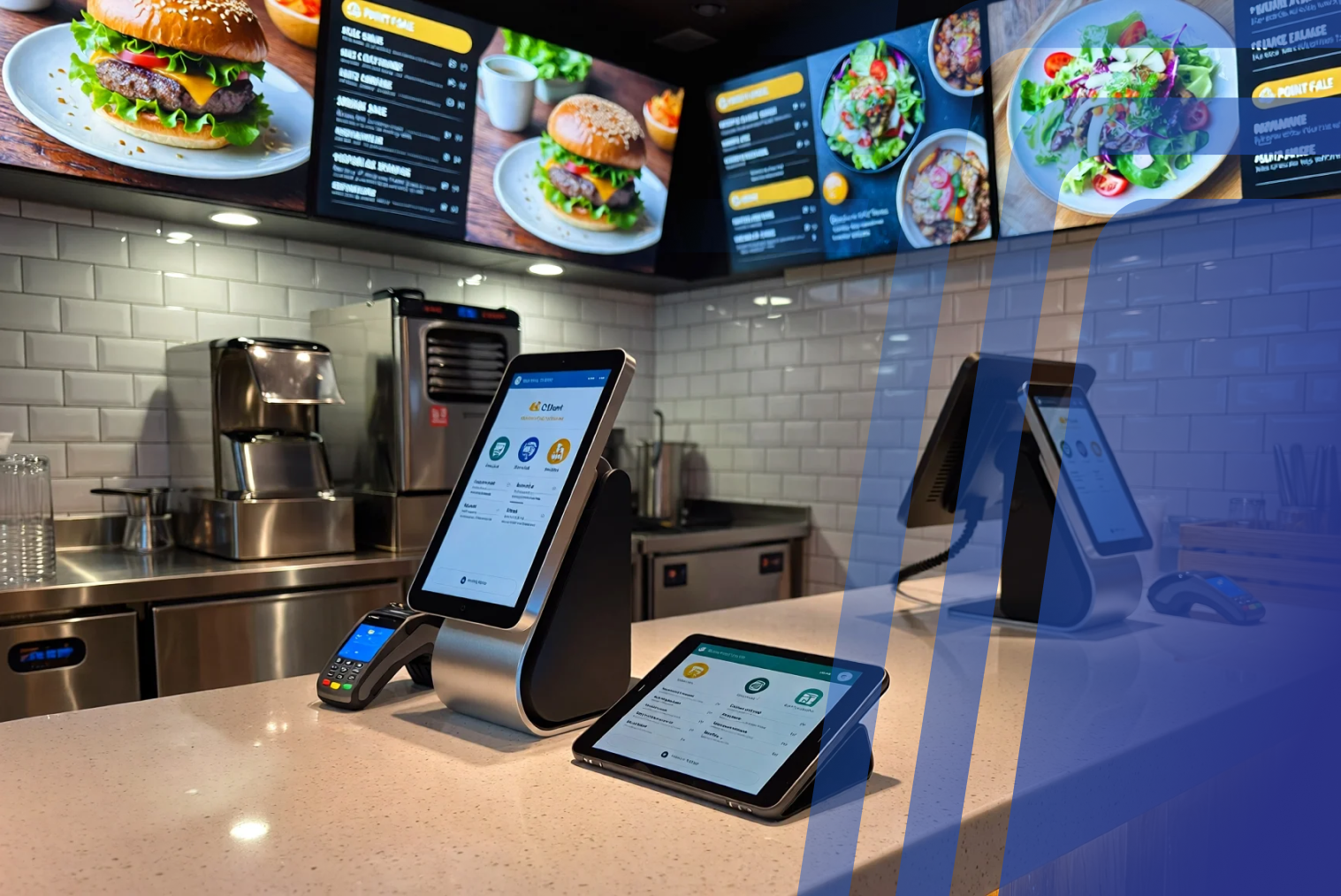
A combined POS and QR ordering setup requires: an internet connection at the venue, a POS system with native QR ordering support, a payment gateway that supports NZ payment methods (Windcave or Stripe), and printed QR codes for each table. No additional hardware at the table is needed for QR ordering — the customer's phone is the device.
The setup process for a venue already running TABIN POS is straightforward: enable QR ordering in the dashboard, configure the menu display and modifiers, generate a unique QR code per table, and print and place them. Menu changes made in the POS appear on the QR menu automatically.
For venues not yet on a POS with native QR integration, the hardware requirements are the same as any POS rollout: terminal, receipt printer, and EFTPOS terminal — with QR ordering flowing through the existing infrastructure rather than adding to it.
Common Integration Pitfalls to Avoid
- Choosing a QR app that doesn't integrate with your current POS. Always verify that the QR ordering system connects natively to your POS — not through a workaround that routes orders to a separate printer or tablet.
- Running QR payments through a different gateway than your counter payments. This creates two separate reconciliation streams and two sets of transaction fees. Look for a solution where all payments — counter, QR, kiosk — flow through the same gateway.
- Not testing the menu sync before go-live. Confirm that a price change or sold-out item in the POS reflects immediately on the QR menu. If there's a delay, customers will order unavailable items.
- No fallback for customers who can't use QR. Always maintain a counter or kiosk option. QR should be an added channel, not the only one.
- Table identification errors. Each QR code must map uniquely to a table number that routes correctly to the kitchen. Test every table QR code before service begins.
Choosing an All-in-One System
The cleanest setup for any NZ venue is a single platform where the point of sale system includes QR ordering, table ordering, and kiosk as native channels — not as add-on apps. This means one menu to manage, one dashboard to review, one support contact, and one payment gateway.
TABIN's integrated platform connects scan to order, counter POS, self-ordering kiosk, and KDS in a single system built for NZ hospitality — with Windcave and Stripe payment support, 15% GST handling, and NZ-hours support. Every order from every channel appears in the same queue, tagged with its source and table reference.
If you're evaluating whether your current POS can support QR or tabletop ordering system natively, contact the TABIN team for a demo — bring your current setup details and we'll show you what a unified order flow looks like in practice.
Conclusion
You don't need two systems. You need one system where QR code menu ordering is a built-in channel alongside counter and kiosk — not a separate app generating a separate report. The distinction between native integration and bolt-on addition determines whether your team spends their shift managing one system or juggling three.
TABIN's POS and online ordering integration is built for exactly this — NZ venues that want to add QR and table ordering without adding operational complexity. Book a demo to see how it works end-to-end.
Frequently Asked Questions
Q1: Do I need a separate QR ordering app if I already have a POS?
Only if your POS doesn't include native QR ordering. If your point of sale system supports QR table ordering as a built-in channel, no separate app is needed — orders flow directly into your existing POS and KDS queue. A bolt-on app means a separate dashboard, a separate menu to maintain, and often a separate payment reconciliation. Always check whether the QR ordering is native or an add-on before committing.
Q2: Does TABIN's POS include built-in QR or table ordering?
Yes. TABIN's QR code menu ordering is built directly into the TABIN POS — not an add-on app. Customers scan a unique table QR code, browse the full menu, order, and pay. The order appears in the TABIN POS and KDS in real time, tagged with the table number, with no separate screen for staff to monitor.
Q3: How does scan-to-order work with existing POS hardware?
For scan to order to work with your existing POS, the QR ordering platform must integrate natively with your POS software — not just route orders to a separate printer. The customer's order arrives in your POS as a standard order, and your existing kitchen printer or KDS displays it the same way it would display a counter order. No additional hardware is required at the table.
Q4: Can customers scan to order and pay directly at the table?
Yes — when the QR ordering system supports integrated payments. Customers scan the table QR code, build their order, and pay via Apple Pay, Google Pay, or card through the payment gateway connected to your POS. The payment is recorded in your POS automatically, with no manual reconciliation required. Split payment between diners at the same table is handled through the same ordering interface.
Q5: Do I need a separate app for scan-to-order, or does my POS handle it?
If your POS has native scan-to-order functionality, no separate app is required — for you or your customers. The customer scans the table QR code using their phone camera, and the menu opens in their browser without any app download. Your staff sees the resulting orders in the standard POS dashboard alongside all other order types.
Q6: Is tabletop ordering different from QR code menu ordering?
Yes. A tabletop ordering system typically refers to a dedicated tablet mounted at the table — the device is provided by the venue. QR code ordering uses the customer's own phone, with the menu loading in their browser when they scan the code. Both achieve the same outcome (customer-directed ordering without a server), but QR require


.webp)










.png)

















.webp)


